





- Your cart is empty Browse Shop
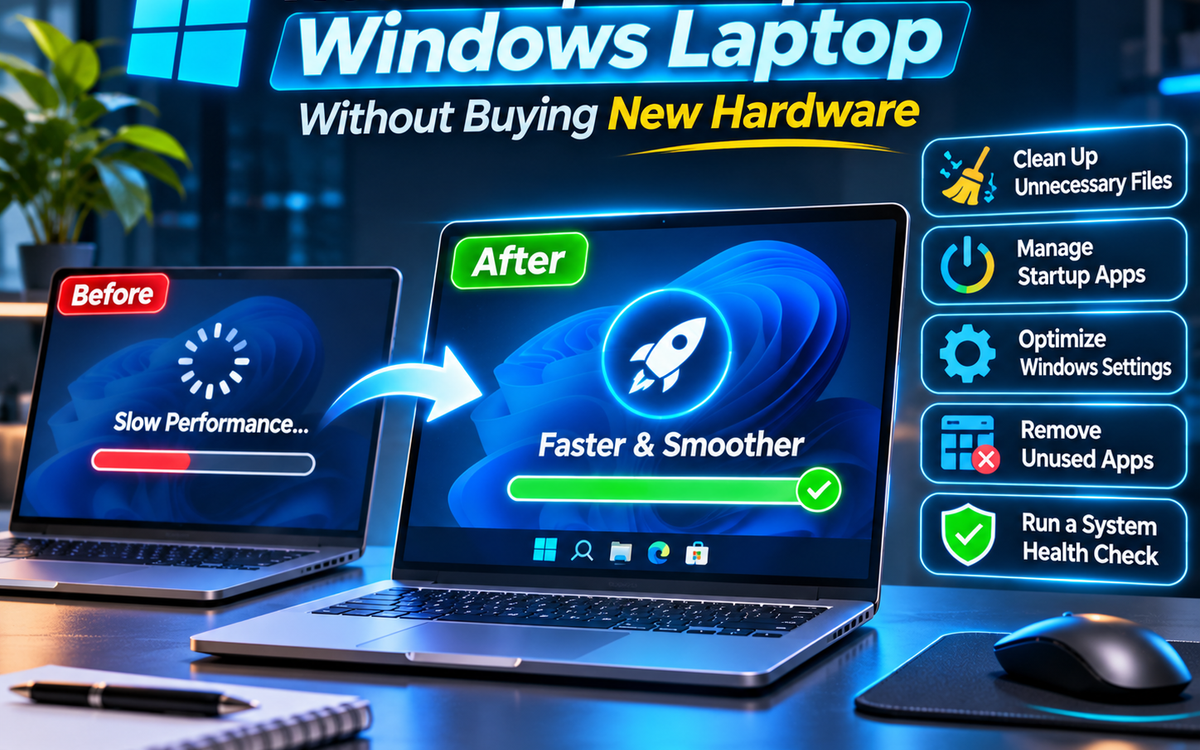
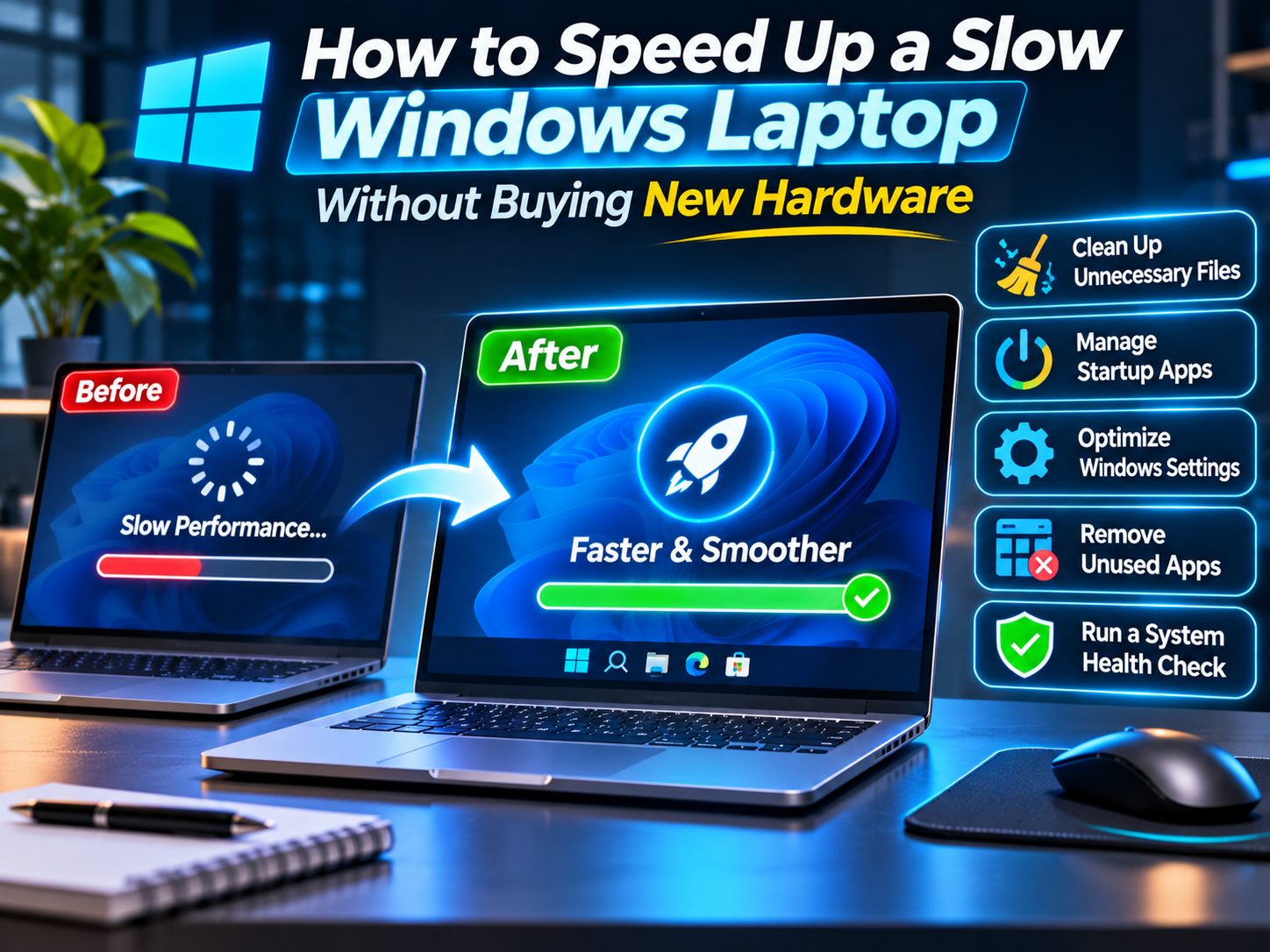
Does your laptop take several minutes to start, freeze when you open multiple browser tabs or struggle to run applications that previously worked without problems?
Before spending hundreds of pounds on a replacement laptop, it is worth investigating whether software, unnecessary background processes or inefficient Windows settings are responsible.
Learning how to speed up a slow Windows laptop could help you extend the useful life of your existing device without spending money on additional hardware.
Many performance problems can be addressed using tools already available in Windows 10 and Windows 11. Disabling unnecessary startup applications, freeing up storage, managing memory usage and removing unwanted software can make a noticeable difference when these factors are responsible for the slowdown.
Whether you are a student, programmer, office professional, remote worker or small business owner, this guide explains 15 practical ways to improve laptop performance without purchasing new hardware.
Why Is My Windows Laptop Running So Slowly?
A Windows laptop can become slow because of excessive background processes, insufficient available memory, limited storage space, outdated software, malware, overheating or corrupted operating system files. Identifying the underlying cause is important because different performance problems require different solutions, and unnecessary system changes may provide little benefit.
Common reasons for slow laptop performance include:
- Too many applications launching automatically.
- Insufficient free storage space.
- Excessive browser tabs and extensions.
- Resource-intensive background applications.
- Malware or potentially unwanted software.
- Outdated Windows updates or device drivers.
- Overheating and thermal throttling.
- Restrictive power management settings.
- Corrupted Windows system files.
- Ageing or failing hardware.
Microsoft identifies several of these issues in its official Windows performance optimisation guidance. Microsoft Support
However, a slow laptop does not necessarily mean that its hardware needs replacing.
How to Find Out What Is Slowing Down Your Laptop
Before attempting to optimise Windows settings, identify which system resources are under pressure.
Use Windows Task Manager
Press Ctrl + Shift + Esc to open Task Manager.
Select the Processes tab and examine CPU, Memory and Disk usage.
High CPU Usage
The CPU processes instructions required by Windows and installed applications.
If processor usage remains unusually high while you are performing basic tasks, an application or background process may be consuming excessive resources.
Temporary increases during software updates, video rendering or other demanding activities are normal.
High Memory Usage
RAM temporarily stores information required by active applications.
When available memory becomes limited, Windows may rely more heavily on storage-based virtual memory, which is generally slower than physical RAM.
Closing unnecessary applications and browser tabs can help reduce memory pressure.
High Disk Usage
Persistent 100% disk activity can make a laptop feel unresponsive, particularly when it uses a traditional mechanical hard drive.
Possible causes include Windows updates, antivirus scanning, cloud synchronisation, insufficient memory or storage problems.
High disk activity does not automatically mean that the drive is faulty.
Check Your Laptop’s Performance Under Normal Conditions
Observe Task Manager while performing the activities that normally cause problems.
For example, if your laptop becomes slow during Microsoft Teams meetings, examine resource usage while Teams and your browser are running.
This is more useful than making random Windows configuration changes without understanding the cause.
15 Ways to Speed Up a Slow Windows Laptop for Free
1. Restart Your Laptop Properly
Restarting your laptop is one of the simplest ways to resolve temporary performance problems.
Many users close their laptop lid at the end of the working day without performing a full restart.
Sleep mode preserves the current session, but it does not necessarily resolve background processes or software problems that have accumulated over time.
How to Restart Windows
Save your work and select:
Start > Power > Restart
A restart can clear temporary memory usage, resolve unresponsive processes and complete pending updates.
Windows Fast Startup can cause an ordinary shutdown to behave differently from a restart, so selecting Restart is preferable when troubleshooting temporary system problems.
If your laptop becomes noticeably faster afterwards but slows down again within a few hours, investigate the applications you regularly open.
2. Disable Unnecessary Startup Programs
Startup applications launch automatically when you sign in to Windows.
While some are essential, others consume system resources even when you do not need them.
Reducing unnecessary startup programs can improve boot times and reduce background memory consumption.
How to Disable Startup Programs in Windows 11
Open:
Settings > Apps > Startup
Turn off applications that do not need to launch automatically.
How to Disable Startup Programs in Windows 10
Open Task Manager using Ctrl + Shift + Esc and select the Startup tab.
Select an unnecessary application and choose Disable.
Depending on your Windows version, Task Manager may also display the startup impact of individual applications.
Applications worth reviewing include game launchers, music streaming services, optional messaging applications and software you only use occasionally.
Disabling startup behaviour does not uninstall the application. You can still launch it manually.
Avoid disabling antivirus protection, essential accessibility applications, workplace security software or unfamiliar system components.
Microsoft provides dedicated guidance for configuring startup applications in both Windows 10 and Windows 11. Microsoft Support
3. Close Resource-Intensive Applications
Running several demanding applications simultaneously can overwhelm an older or entry-level laptop.
For example, having a video editing application, several browser tabs, a video meeting and large spreadsheets open at the same time can create significant memory pressure.
How to Identify Resource-Intensive Applications
Open Task Manager and sort running processes by CPU or Memory usage.
If an application you recognise is consuming considerable resources and you no longer need it, save your work and close it normally.
Use End task only when necessary, particularly if an application has stopped responding.
Force-closing software can result in unsaved work being lost. Do not terminate unfamiliar Windows system processes simply because they appear to consume resources.
For users with limited RAM, running fewer applications simultaneously may provide a greater improvement than adjusting cosmetic Windows settings.
4. Uninstall Software You No Longer Use
Laptops often accumulate applications that were installed for temporary projects, promotional offers or previous work requirements.
Some applications continue running background services even when they are rarely opened.
Removing unnecessary software can free storage and, in some cases, reduce background activity.
Uninstall Applications in Windows 11
Navigate to:
Settings > Apps > Installed apps
Locate an unwanted application, open its options menu and select Uninstall.
Uninstall Applications in Windows 10
Navigate to:
Settings > Apps > Apps & features
Select the application you want to remove.
Common candidates include expired trial software, unused games, outdated utilities and unnecessary third-party optimisation programs.
Before uninstalling anything, confirm that it is not required by your employer, hardware manufacturer or another application.
Some manufacturer utilities are useful for battery management, keyboard functionality and device updates.
5. Free Up Disk Space
Insufficient available storage can affect Windows updates, temporary file creation and general system responsiveness.
A nearly full system drive may also restrict the space available for virtual memory and application caches.
How to Check Available Storage
Open File Explorer and select This PC.
Examine the available capacity on your main Windows drive, usually labelled C:.
Remove Unnecessary Files
In Windows 11, open:
Settings > System > Storage > Temporary files
Windows 10 also provides storage management tools under Settings > System > Storage.
Review the available cleanup categories before removing anything.
Temporary files, Windows update cleanup files and unnecessary cached data may provide opportunities to recover storage.
Be particularly careful with the Downloads folder and previous Windows installation files. Removing previous installation files can eliminate the option to revert to an earlier Windows version.
How Much Free Disk Space Should You Maintain?
Keeping approximately 15–20% of your system drive free can be a useful planning target where practical.
This is not a universal Microsoft performance requirement. Actual storage needs depend on drive capacity, installed software and the work you perform.
The important objective is to maintain enough space for Windows updates, application files and normal operating system activity.
Microsoft’s official storage guidance explains how insufficient drive space can contribute to performance and update problems. Microsoft Support
6. Enable Windows Storage Sense
Storage Sense is a built-in Windows feature that helps manage storage automatically.
It can remove unnecessary temporary files and clear older items from the Recycle Bin according to your selected configuration.
How to Enable Storage Sense
Open:
Settings > System > Storage
Enable Storage Sense and review its cleanup settings.
Depending on your Windows version, you can configure when automatic cleanup occurs and how particular file categories are handled.
Why Storage Sense Is Useful
Instead of waiting until your laptop runs out of storage, Storage Sense can help prevent unnecessary files from accumulating.
By default, it does not automatically delete files from your Downloads folder or manage supported cloud files unless you enable the relevant options.
Nevertheless, review these settings carefully to avoid removing files you intended to retain. Storage Sense primarily manages the Windows system drive. Microsoft Support
For busy professionals and small business owners, automatic storage management can reduce the need for regular manual cleanup.
7. Update Windows and Device Drivers
Outdated software can contribute to performance problems, compatibility issues and system instability.
Windows updates may include bug fixes, security improvements and changes that help resolve problems affecting particular devices.
Update Windows 11
Open:
Settings > Windows Update > Check for updates
Update Windows 10
Open:
Settings > Update & Security > Windows Update
The updates available will depend on your Windows edition and current support status.
Update Device Drivers Safely
Device drivers allow Windows to communicate with hardware such as graphics processors, network adapters and audio devices.
Use Windows Update or your laptop manufacturer’s official support website to obtain appropriate driver updates.
Avoid downloading drivers from unfamiliar websites or installing third-party driver updater applications that claim to solve every performance problem.
Optional driver updates should be considered when they address a relevant issue rather than installed indiscriminately.
After updating, restart your laptop if required and allow any remaining update processes to complete.
8. Scan Your Laptop for Malware
Malware can consume processing power, generate unwanted network activity and interfere with normal computer operation.
Potentially unwanted applications may also introduce intrusive advertising, browser redirects and unnecessary background processes.
Windows includes built-in security tools that can help identify these threats.
How to Run a Windows Security Scan
Search for Windows Security from the Start menu.
Open Virus & threat protection, then select Quick scan.
You can also use Scan options to perform a more comprehensive full scan or, when appropriate, a Microsoft Defender Offline scan.
An offline scan restarts the computer, so save your work beforehand.
Signs Your Slow Laptop May Have Malware
Unexpected browser redirects, unfamiliar applications, unexplained pop-ups and unusual background activity can indicate a potential security problem.
However, poor performance alone does not prove that a laptop is infected.
Keep your security software enabled. Disabling antivirus protection to improve laptop speed can create substantially greater problems than the resources it saves.
If your laptop is managed by an employer, follow the organisation’s security procedures before changing protective settings.
9. Reduce Windows Visual Effects
Windows uses animations, transparency and other visual effects to create a modern interface.
These features generally work well on capable computers, but reducing them may improve perceived responsiveness on older or less powerful laptops.
Adjust Visual Effects in Windows
Search the Start menu for:
Adjust the appearance and performance of Windows
Open the result and select the Visual Effects tab.
Choose Adjust for best performance, or use Custom to retain the visual features you prefer.
You may wish to keep font smoothing enabled to maintain comfortable reading.
Disable Unnecessary Animations in Windows 11
Open:
Settings > Accessibility > Visual effects
Review the Animation effects and Transparency effects settings.
Reducing these effects may make menus and windows feel more responsive.
However, cosmetic changes will not substantially accelerate demanding tasks such as video rendering or software compilation when the primary limitation is processor performance.
10. Optimise Your Windows Power Settings
Laptop power management settings attempt to balance performance, battery life and energy consumption.
A power-saving configuration may limit processor performance to extend battery life.
Change Power Mode in Windows 11
Open:
Settings > System > Power & battery
Locate Power mode and select an appropriate option, such as Balanced or Best performance, where available.
Change Power Settings in Windows 10
Depending on your laptop, power settings may be available through the battery icon or:
Control Panel > Hardware and Sound > Power Options
Available options vary according to the device and its manufacturer.
Should You Always Use Best Performance Mode?
No. For everyday browsing, document editing and email, Balanced is generally a sensible starting point.
Best performance mode may be useful when completing more demanding work while connected to mains power.
However, it can increase battery drain, electricity consumption and heat generation.
For UK remote workers and businesses operating several laptops, selecting an appropriate power mode can help balance productivity with energy efficiency.
11. Improve Your Web Browser’s Performance
A slow browser can make an otherwise functional laptop feel significantly slower.
Modern websites, web applications and browser extensions can consume substantial memory and processing resources.
Reduce the Number of Open Tabs
Close tabs that you no longer require.
If you frequently keep dozens of pages open, consider bookmarking important websites instead of leaving them running continuously.
Enable Browser Memory Management
Google Chrome offers Memory Saver functionality, while Microsoft Edge provides features such as sleeping tabs.
These features can reduce the resources consumed by inactive browser tabs.
Search your browser’s settings for its performance or memory management options.
Remove Unnecessary Browser Extensions
Extensions may continue operating in the background or interact with every webpage you visit.
Review installed extensions and remove those you no longer use.
Keep workplace security extensions and other required tools enabled.
Distinguish Browser Problems from Internet Problems
If websites load slowly but offline applications remain responsive, your broadband connection, Wi-Fi signal or the website itself may be responsible.
Test another website or network connection before making extensive changes to Windows.
Clearing browser data can help resolve particular website problems, but regularly deleting every cache is not a guaranteed speed improvement. Cached information can make frequently visited websites load faster.
12. Manage Background Applications and Cloud Synchronisation
Some applications continue performing work after their main windows have been closed.
Background activity may include notifications, file synchronisation, software updates and communication with online services.
Manage Background App Permissions
For supported Windows 11 applications, navigate to:
Settings > Apps > Installed apps
Open the application’s advanced options and review its background permissions.
In Windows 10, compatible applications can be managed through:
Settings > Privacy > Background apps
Traditional desktop applications may require changes through their own preferences instead.
Manage Cloud Synchronisation
Services such as OneDrive, Dropbox and Google Drive can consume network bandwidth and storage resources while synchronising large quantities of information.
If a large synchronisation operation is causing temporary performance problems, let it finish or briefly pause it when appropriate.
Resume synchronisation afterwards to ensure that important files remain up to date.
Do not permanently disable business backup or synchronisation arrangements simply to reduce background activity.
13. Optimise Your Laptop’s Storage Drive
Windows includes a built-in tool for maintaining storage drive performance.
The appropriate optimisation method depends on whether your laptop uses a mechanical hard disk drive (HDD) or a solid-state drive (SSD).
How to Optimise Windows Drives
Search the Start menu for:
Defragment and Optimize Drives
Open the tool and examine the media type of your storage drive.
Select the relevant drive and choose Optimise when appropriate.
HDD Optimisation
Traditional hard drives may benefit from defragmentation, which reorganises fragmented file data to reduce unnecessary mechanical movement during access.
SSD Optimisation
Solid-state drives work differently and do not require conventional manual defragmentation as a routine performance measure.
Windows generally uses appropriate SSD maintenance operations, including TRIM, according to the detected drive type.
Leave normal scheduled Windows drive optimisation enabled unless you have a specific reason to change it.
Avoid third-party utilities that repeatedly force traditional defragmentation on SSDs.
If the drive is producing errors, disappearing from Windows or making unusual clicking sounds in the case of an HDD, prioritise backing up important files and obtaining a hardware assessment.
14. Prevent Laptop Overheating
A laptop may become slower as its internal temperature rises.
Modern processors and graphics chips can reduce operating speeds when necessary to protect themselves from excessive heat.
This is known as thermal throttling.
Signs That Overheating May Affect Performance
Your laptop may become unusually hot, its fans may run continuously, or performance may deteriorate after several minutes of demanding work.
Unexpected shutdowns can also occur in more serious cases.
How to Reduce Laptop Temperatures Without Buying Hardware
Place the laptop on a hard, flat surface rather than a bed, blanket or sofa.
Ensure that its ventilation openings are unobstructed.
Keep the surrounding area reasonably cool and remove unnecessary processor-intensive workloads.
Check whether an aggressive power mode is contributing to excessive heat.
If the external ventilation openings are dusty, follow the manufacturer’s cleaning instructions.
Do not open the laptop or attempt to clean internal components unless you have the necessary knowledge and authorisation.
A laptop that repeatedly overheats despite ordinary use may require professional inspection.
15. Repair Corrupted Windows System Files
Damaged or missing operating system files can contribute to freezing, application errors and Windows instability.
Microsoft provides two built-in repair tools: Deployment Image Servicing and Management (DISM) and System File Checker (SFC).
These tools are particularly useful when Windows is malfunctioning rather than simply struggling with demanding applications.
Step 1: Open Command Prompt as Administrator
Search for Command Prompt in the Start menu.
Select Run as administrator.
Step 2: Repair the Windows Component Store
Enter the following command:
DISM.exe /Online /Cleanup-Image /RestoreHealthAllow the operation to complete.
DISM may require access to Windows Update or an appropriate repair source.
Step 3: Run System File Checker
After DISM completes successfully, enter:
sfc /scannowWait until the verification process finishes.
Restart your laptop afterwards if appropriate and check whether the original problem has improved.
Microsoft recommends running DISM before SFC when repairing damaged Windows system components. Microsoft Support+1
These commands do not guarantee faster performance. Their purpose is to identify and repair certain operating system problems.
If either command repeatedly fails, seek further technical assistance rather than downloading unofficial replacement system files.
Why Is My Laptop Still Slow After Optimising Windows?
Software optimisation has limitations.
If the previous methods do not resolve the problem, investigate whether the slowdown occurs in a particular application, during specific tasks or throughout the operating system.
Your Laptop May Have Insufficient RAM for Modern Applications
Reducing background processes can improve performance, but it cannot increase physical memory capacity.
A laptop with 4GB of RAM may struggle with several modern productivity applications running simultaneously.
Even a laptop with more memory can experience difficulties when handling demanding development, design or video editing workloads.
Keep Windows virtual memory management enabled unless you have a specific technical reason to modify it.
Disabling the paging file can introduce application errors and instability.
Your Storage Drive May Be Failing
Persistent freezing, file corruption, storage errors and unusual mechanical noises may indicate a failing drive.
Back up important documents immediately if you suspect a storage problem.
Repeatedly running intensive optimisation tools is not an appropriate substitute for investigating potential hardware failure.
Your Processor May Be Reaching Its Performance Limits
An older processor may struggle with modern software requirements regardless of how efficiently Windows is configured.
Using lighter software, reducing multitasking and choosing less demanding application settings may help extend the laptop’s usefulness.
However, software optimisation cannot make existing hardware perform beyond its physical capabilities.
Should You Reset Windows to Improve Laptop Performance?
Resetting Windows may help when persistent software problems cannot be resolved through ordinary troubleshooting.
It should generally be considered after less disruptive options have been attempted.
Reset Windows 11
Navigate to:
Settings > System > Recovery > Reset PC
Reset Windows 10
Navigate to:
Settings > Update & Security > Recovery > Reset this PC
Windows normally provides options to retain personal files or remove everything.
The Keep my files option reinstalls Windows while retaining personal files, but it removes installed applications and resets various settings.
Important Considerations Before Resetting Windows
Back up important files, browser information, application settings and licences.
Ensure that you can access necessary accounts and any BitLocker or device encryption recovery keys.
A reset is not a substitute for a verified backup.
If your laptop belongs to an employer, university or other organisation, contact its IT department before resetting Windows.
Reinstalling the operating system may restore normal performance when software problems are responsible, but it will not repair failing physical hardware.
Is It Still Safe to Use Windows 10 in 2026?
Microsoft ended standard support for mainstream Windows 10 editions on 14 October 2025.
This means that ordinary Windows 10 installations no longer receive regular security updates through their previous support arrangements.
As of November 2026, Microsoft’s UK consumer support information states that eligible Windows 10 version 22H2 devices enrolled in the Extended Security Updates (ESU) programme can receive critical and important security updates through 12 October 2027. Microsoft Windows
ESU is a temporary security arrangement rather than a complete extension of Windows 10 support. It does not provide general feature improvements or full technical support.
Business-managed devices and certain long-term servicing editions have different eligibility requirements and support arrangements.
Should You Upgrade to Windows 11?
If your existing laptop officially supports Windows 11, upgrading may provide a more sustainable long-term option without purchasing new hardware.
However, upgrading does not guarantee improved performance.
Check system compatibility, back up important files and confirm that your essential applications will continue working.
Avoid bypassing Windows 11 hardware requirements simply to install an unsupported configuration.
For UK businesses, maintaining supported software is especially important when laptops are used to access customer information, financial records and business systems.
Common Windows Optimisation Mistakes to Avoid
Some online performance tutorials recommend aggressive system changes that can cause more problems than they solve.
Using Registry Cleaner Applications
Registry cleaners often promise dramatic improvements by removing supposedly unnecessary Windows registry entries.
There is no reliable reason to expect routine registry cleaning to produce substantial performance improvements on a healthy computer.
Incorrect registry changes can interfere with applications and operating system functionality.
Disabling Windows Security
Turning off antivirus protection may reduce some background activity but leaves the computer more exposed to malware.
Security scanning should remain enabled.
Disabling Essential Windows Services
Online debloating scripts sometimes remove applications or disable services without considering the user’s individual requirements.
This can interfere with printing, networking, accessibility, updates and workplace software.
Prefer targeted, reversible changes.
Installing Multiple Antivirus Applications
Running several real-time antivirus engines simultaneously can create unnecessary resource consumption and compatibility conflicts.
Use an appropriate security arrangement rather than assuming that additional antivirus programs automatically provide better protection.
Buying Unnecessary PC Booster Software
Many paid optimisation applications duplicate functions already available through Windows.
Task Manager, Storage Sense, Windows Security and built-in recovery tools can address numerous common issues without requiring additional purchases.
Deleting System Files Manually
Never delete unfamiliar files from Windows system directories to recover storage.
Use supported cleanup tools instead.
How to Keep Your Windows Laptop Running Faster for Longer
Maintaining laptop performance is generally easier than recovering from years of accumulated software problems.
Review startup applications periodically, remove software you no longer require and maintain adequate available storage.
Keep supported applications and security tools updated.
Restart your laptop regularly, particularly when updates are pending or applications begin behaving unexpectedly.
Avoid installing unnecessary browser extensions and utilities from unfamiliar sources.
For students and professionals, adapting everyday workflows can also make existing hardware more useful.
For example, closing video editing software before starting a video meeting or avoiding several simultaneous cloud synchronisation tasks may reduce unnecessary competition for system resources.
Consistency matters more than repeatedly applying complicated optimisation techniques.
Can Optimising Your Laptop Save Money?
Purchasing a replacement laptop can represent a significant expense for students, freelancers and small businesses.
Consider a hypothetical UK business with five laptops.
If replacing each laptop would cost £500, the total equipment purchase would be £2,500.
If software optimisation allows those laptops to remain suitable for their intended work, the business may be able to defer some or all of that expenditure.
This is an illustrative financial example rather than a guaranteed saving or current hardware quotation.
Businesses should also consider employee time lost to persistent computer problems.
Keeping an unsuitable device in service indefinitely may ultimately cost more than replacing it.
The objective is to extend the useful life of existing equipment where performance, reliability and security remain acceptable.
Conclusion: How to Speed Up a Slow Windows Laptop Without Spending Money
Learning how to speed up a slow Windows laptop can help you improve everyday productivity, reduce unnecessary expenditure and extend the useful life of your existing computer.
Start by identifying which applications consume excessive resources, reducing unnecessary startup programs and freeing up disk space.
Then review browser performance, power management, software updates and background activity.
Windows includes numerous tools that can address common performance problems without requiring paid optimisation software or hardware upgrades.
However, software optimisation cannot resolve every issue. Ageing hardware, failing storage drives and insufficient physical memory may eventually require further attention.
For Windows 10 users, maintaining appropriate security update coverage is also essential.
The most effective way to improve laptop performance is to identify the actual cause of the slowdown and make targeted, safe changes rather than applying every available optimisation indiscriminately.
10. FAQ Section
How can I speed up my Windows laptop for free?
You can improve Windows laptop performance by disabling unnecessary startup applications, removing unwanted software, freeing up storage, reducing background processes, managing browser tabs and installing appropriate updates. Most of these tasks can be completed using built-in Windows tools.
Why is my laptop so slow even though it has enough storage?
Available storage is only one factor affecting performance. Excessive CPU usage, insufficient RAM, overheating, malware, background applications and operating system problems can also make a laptop slow.
How do I make Windows 11 run faster on an older laptop?
Reduce unnecessary startup programs, manage background applications, adjust visual effects, close unused browser tabs and review power settings. Ensure that your laptop officially supports Windows 11 and has sufficient resources for your intended applications.
Does deleting temporary files make a laptop faster?
Removing temporary files can improve performance when insufficient storage is contributing to system problems. However, deleting temporary files from a computer that already has plenty of available storage may produce little noticeable improvement.
Does adding virtual memory make a laptop faster?
Virtual memory can help Windows operate when physical RAM becomes limited, but it is not equivalent to additional RAM. Increasing its size does not necessarily improve speed. For most users, allowing Windows to manage the paging file automatically is preferable.
Will resetting Windows make my laptop faster?
Resetting Windows may improve performance when unwanted software, configuration problems or corrupted system files are responsible. It will not resolve inadequate hardware capacity or physical component failure. Back up important files before resetting.
Are free PC cleaner applications safe?
Some legitimate applications provide useful functions, but many unnecessary PC cleaners duplicate Windows features or encourage risky system changes. Built-in tools such as Storage Sense, Task Manager and Windows Security are generally preferable as a starting point.
Can I still use Windows 10 safely in 2026?
Eligible Windows 10 devices enrolled in Microsoft’s consumer ESU programme can receive important and critical security updates through 12 October 2027, according to Microsoft’s current UK guidance. This remains a temporary arrangement, and moving to a supported operating system is advisable.

Improve Your Digital Performance Without Unnecessary Business Costs
A faster laptop can improve everyday productivity, but efficient digital systems and well-designed online platforms are equally important for long-term business growth.
At CRAZILS, we help UK businesses and international clients improve their digital presence, make informed technology investments and create better online experiences.
Our services include:
- Web Design & Development
- Website Maintenance & Support
- Ecommerce Solutions
- Business Consultancy
- UI/UX Design
- SEO
- Digital Marketing
- Content Creation & Marketing
Whether you’re struggling with a slow business website, planning a new online platform or reviewing your digital growth strategy, we can help you explore practical solutions aligned with your business goals.
Contact CRAZILS to discuss your next digital project.
Website: https://crazils.com
Email: info@crazils.com
Phone / WhatsApp: +44 7897 053081
WhatsApp: https://wa.me/447897053081
CRAZILS — Digital Solutions. Real Growth.
Related News

24 November 2026